Vertex Animation Texture Blender Addon (VAT)
This Blender plugin generates Vertex Animation Textures (VAT) from animated meshes. It is designed to simplify the export of complex animations to Thr
flement
Video
Three.js Marketplace
Three.js Marketplace
Kickstart your Three.js and React Three Fiber (R3F) projects with our free and premium components themes and tools. Designed for freelancers, developers, and agencies, each product includes essential features to get you up and running quickly.
Web Development
Help with your project?
Custom Three.js, WebGL, and WebGPU development — from product visualizers to interactive 3D websites.
Links
Featured Badge
Add this badge to your website to show you are featured on Three.js Resources.

Description
## Concept
The Vertex Animation Texture (VAT) technique captures the movement of an animated mesh and encodes it into textures. Each pixel in the texture represents the position of a vertex at a specific frame of the animation.
In the generated texture, the vertical axis (top to bottom) corresponds to animation frames, and the horizontal axis (left to right) corresponds to the mesh vertices.
In a real-time engine (such as Three.js), the static mesh is imported along with its animation textures. A shader reads these textures frame by frame to move the vertices, thus reproducing the original animation without the need for an armature or complex calculations on the engine side. This method allows exporting complex animations, including those from physics simulations or modifiers, while optimizing rendering performance.
## Installation
1. Download VAT.py.
2. In Blender, go to Edit > Preferences > Add-ons.
3. Click Install from Disk... and select the VAT.py file.
4. Enable the addon in the list.
## Features

| Feature | Description | Image |
|--------------------|-------------------------------------------------------------------------------------------------------------------------------------------------------------------------------------------------------------------------------------------------------------------------------------------------------------------------------------------------------------|-------------------------------------------------------------------------------------------|
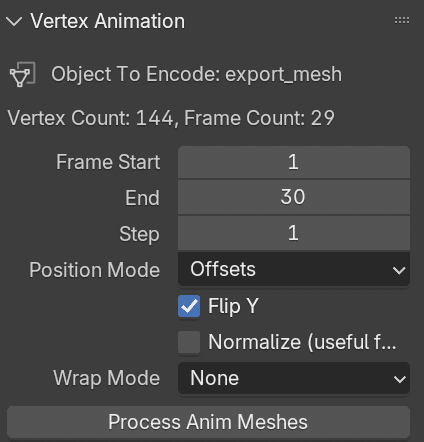
| Infos | Displays information about the export: the name of the object to be encoded, the number of vertices (which determines the width), and the number of frames (which determines the height). In the example shown, the texture will be 144x30. |  |
| Step | Choose the frame step for baking (e.g., every frame, every 2 frames, etc.). This allows you to reduce the number of frames and thus obtain a smaller texture. Since positions are encoded in a texture, linear filter can be used to smooth the pixels (and therefore the positions). | |
| Position mode | Export positions as offsets or absolute values. If set to "offset", the positions are stored relative to the object's initial position. If set to "absolute", the positions are stored in world space, starting from the world origin (0,0,0). | |
| Y-flip | Flip the Y axis in the exported textures if needed. | |
| Normalize position | Normalize vertex positions to fit within a 0-1 range. This option is required if you want to export the animation texture as PNG, since PNG cannot encode negative values. At the end of the export, a "Min Offset" and a "Max Offset" are displayed to map values: 0 = Min Offset and 1 = Max Offset. |  |
| Wrap mode | Controls the layout of the animation texture. None: the texture is a single long strip (not optimal for GPUs). Wrap: positions are wrapped to new rows, making the texture more GPU-friendly (closer to a square or rectangle). Wrap and crop: like Wrap, but the texture is cropped to remove any empty space, resulting in a compact texture. |  |
## Supported Modifiers
The following Blender modifiers are supported by the VAT addon:
| Modifier Name |
|-------------------|
| ARMATURE |
| CAST |
| CLOTH |
| CURVE |
| DISPLACE |
| HOOK |
| LAPLACIANDEFORM |
| LATTICE |
| MESH_DEFORM |
| SHRINKWRAP |
| SIMPLE_DEFORM |
| SMOOTH |
| CORRECTIVE_SMOOTH |
| LAPLACIANSMOOTH |
| SURFACE_DEFORM |
| WARP |
| WAVE |
| PARTICLE_SYSTEM |
| EXPLODE |
Warning: If a modifier changes the number of vertices during the animation (such as PARTICLE_SYSTEM or EXPLODE), the plugin will not work correctly.
For PARTICLE_SYSTEM, it is recommended to set both the Emission Frame Start and End to 1 in the panel, and to start the animation at frame 1. This ensures the vertex count remains constant throughout the animation.
## Usage
1. Select an animated object in your Blender scene.
2. Bake the animation:
- Go to the Cache section in the modifier panel.
- Click Bake All Dynamics to bake the animation.
3. Access the addon panel (On the right near "Item" or "Tool" tab).
4. Configure the desired options (wrap mode, Y-flip, etc.).
5. Start the VAT texture generation.
6. The plugin will generate a new mesh export_mesh with a new uv set vertex_anim, and textures positions and normals.
| Output | Description | Export Format & Settings | Image |
|---------------|-------------------------------------------------------------------------|----------------------------------------------------------------------------------------------------------------|-------------------------------------------------------------------------------------------|
| export_mesh | Mesh with new UV set vertex_anim. Can be exported for use in engines. | .glb or other mesh formats |  |
| positions | Vertex position animation texture. | If Normalize is false: export as OpenEXR, Color RGB, Color Depth Half or Full, Non-Color |  |
| | | If Normalize is true: export as PNG, same settings as above |  |
| normals | Vertex normal animation texture. | PNG or other supported formats |  |
## Usage for threejs
Blender uses Z as the up axis, while in Three.js the up axis is Y. Therefore, when sampling the position texture in GLSL, you should use texturePos.xzy to correctly map the axes.
```glsl
// vertexShader.glsl
attribute vec2 uv1; // define uv1 attribute for vertex_anim uv set
uniform sampler2D posTexture; // positions.exr or positions.png
uniform sampler2D normalTexture; // normals.png
uniform float uTime; // time in seconds
uniform float totalFrames;
uniform float fps;
varying vec3 vNormal;
void main() {
// calculate uv coordinates
float frame = mod(uTime * fps, totalFrames) / totalFrames;
// get the position from the texture
vec4 texturePos = texture(posTexture, vec2(uv1.x, uv1.y - frame));
// get the normal from the texture
vec4 textureNormal = texture(normalTexture, vec2(uv1.x, uv1.y - frame)) * 2.0 - 1.0;
vNormal = textureNormal.xzy;
// translate the position
vec4 translated = vec4(position + texturePos.xzy, 1.0);
gl_Position = projectionMatrix modelViewMatrix translated;
}
```
Sponsors
Related Resources
Mattercraft
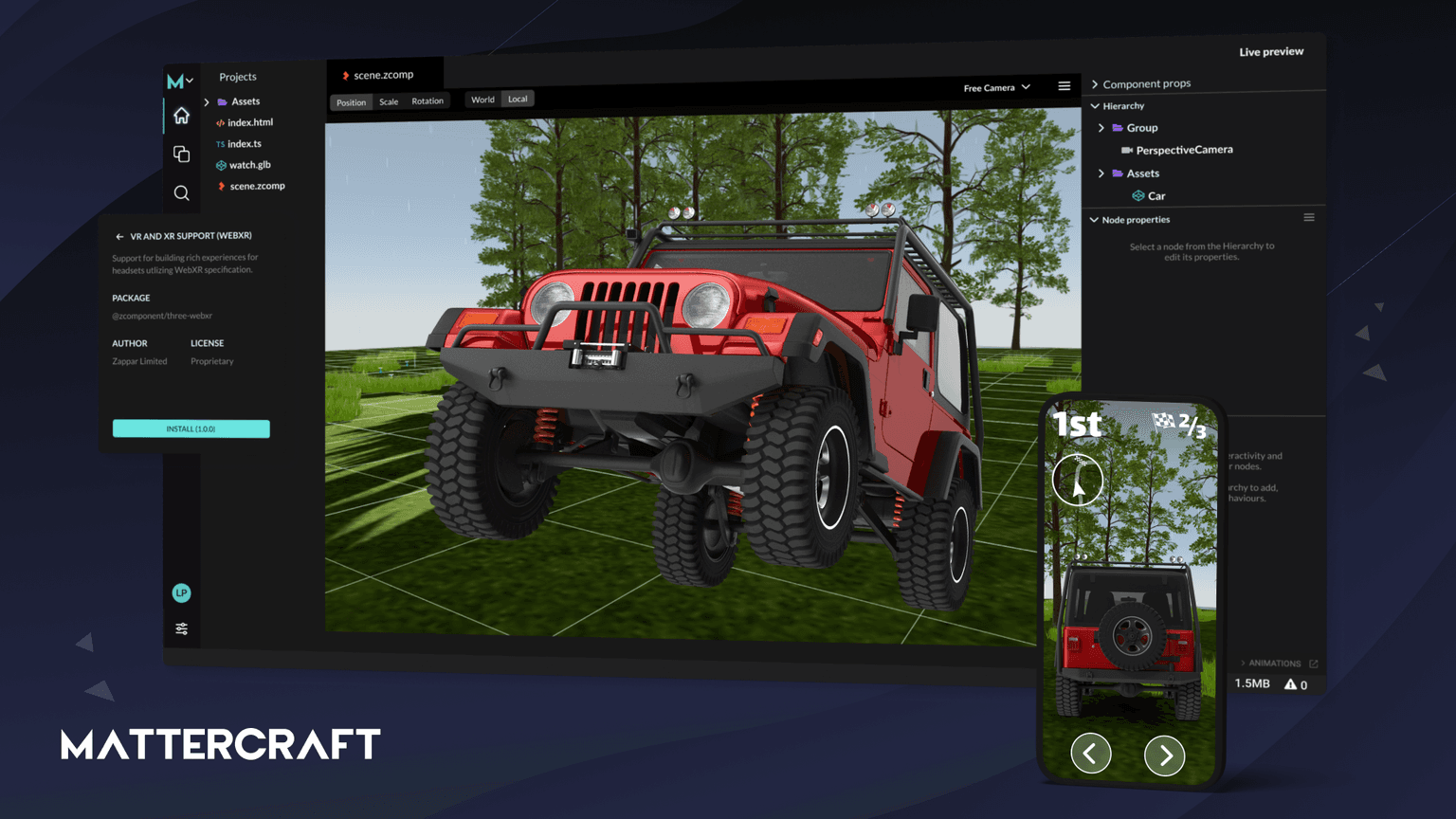
Mattercraft is a visual editor perfected for building interactive 3D, AR, VR and WebXR experiences.
Objectverse Converter
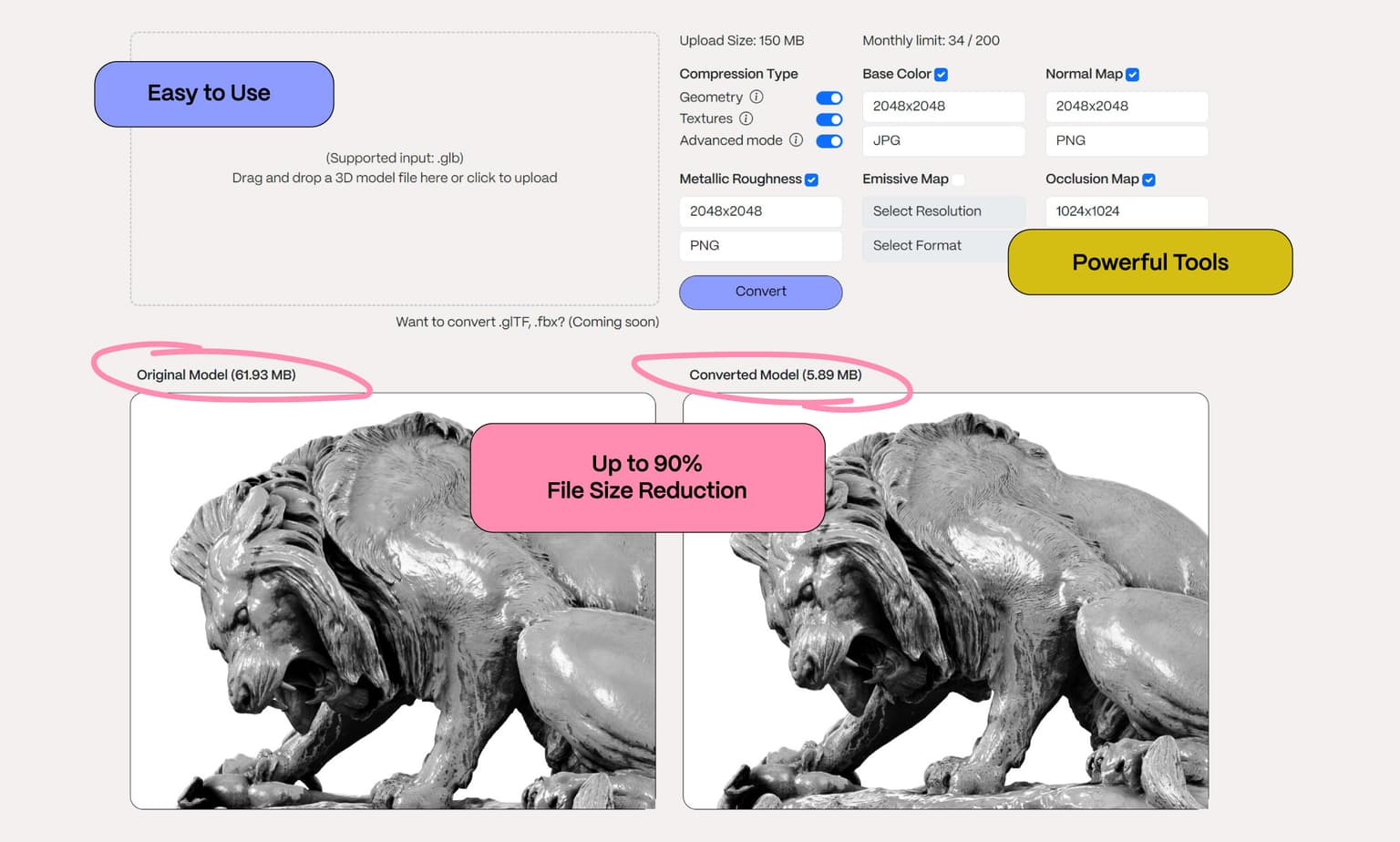
Optimise your 3D assets for Spatial Web, Gaming, AR/VR experiences

X3JS
We ❤️ Three.js and X3JS is a browser-based game engine built on Three.js
lil-gui
Makes a floating panel for controllers on the web. Works as a drop-in replacement for dat.gui.