Three.js Image Gallery: 3D Photo Walls and Scroll Galleries
A Three.js image gallery is typically a grid or wall of textured plane meshes (one PlaneGeometry per image with the photo as its texture map), arranged in 3D space and navigated either by moving the camera through them (a scroll-driven fly-through) or by animating the planes themselves. This is the technique behind most "3D portfolio gallery" and WebGL photo-wall effects.
The plane-per-image approach
Each image is a PlaneGeometry sized to the image's aspect ratio, with the photo loaded as a map texture on a MeshBasicMaterial (unlit, since gallery images usually shouldn't respond to scene lighting like a 3D object would) or a custom shader for hover/transition effects. Arrange them in a grid (a simple nested loop setting x/y positions with consistent spacing) or a more organic scattered layout, depending on the desired look.
For hover effects, the common "image scales up and brightens on hover" pattern, raycasting detects which plane the pointer is over, and the response is either a simple scale/opacity tween (GSAP, see the animation guide) or a shader-driven distortion for a more elaborate effect.
Texture loading strategy for many images
Loading dozens of full-resolution images up front stalls the initial page load. The standard mitigation: load a small, blurred or low-resolution placeholder texture immediately for every plane, then lazy-load the full-resolution texture for each image only as it approaches the camera's view (or the user scrolls near it), swapping the material's map once the full texture finishes loading. This keeps initial load fast regardless of total gallery size, and is the same progressive-loading principle behind lazy-loaded <img> tags, applied to 3D textures instead.
See it in production
Browse the full showcase →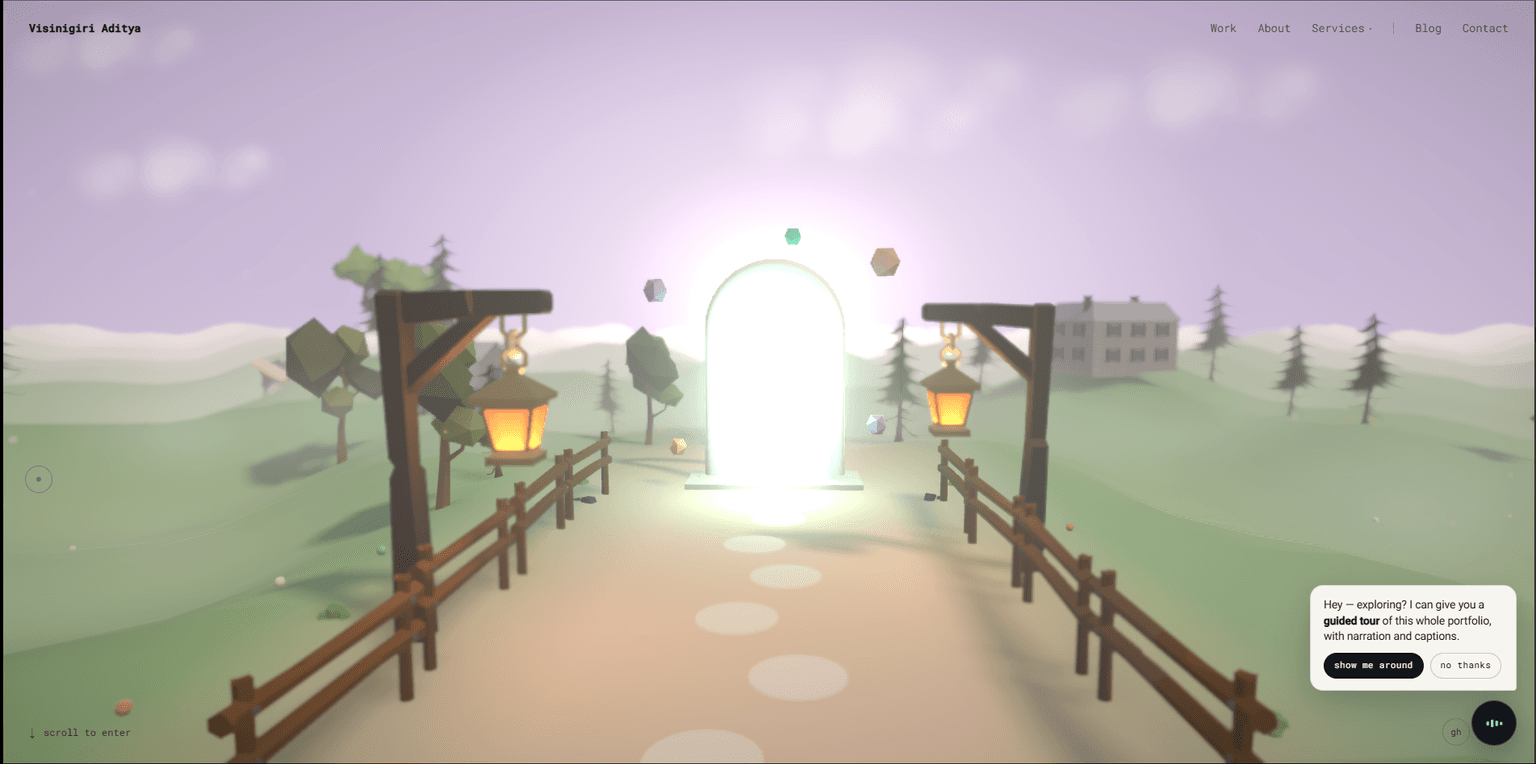
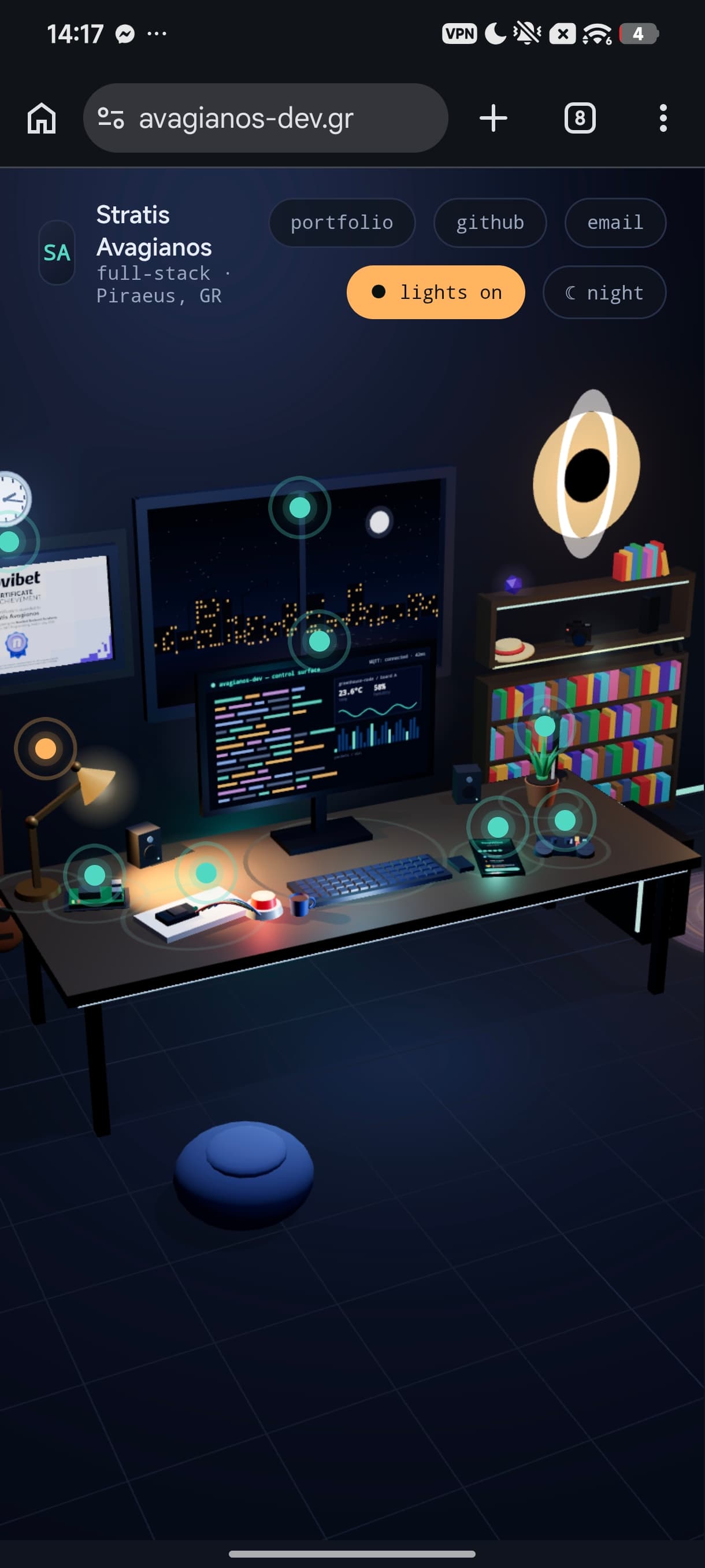
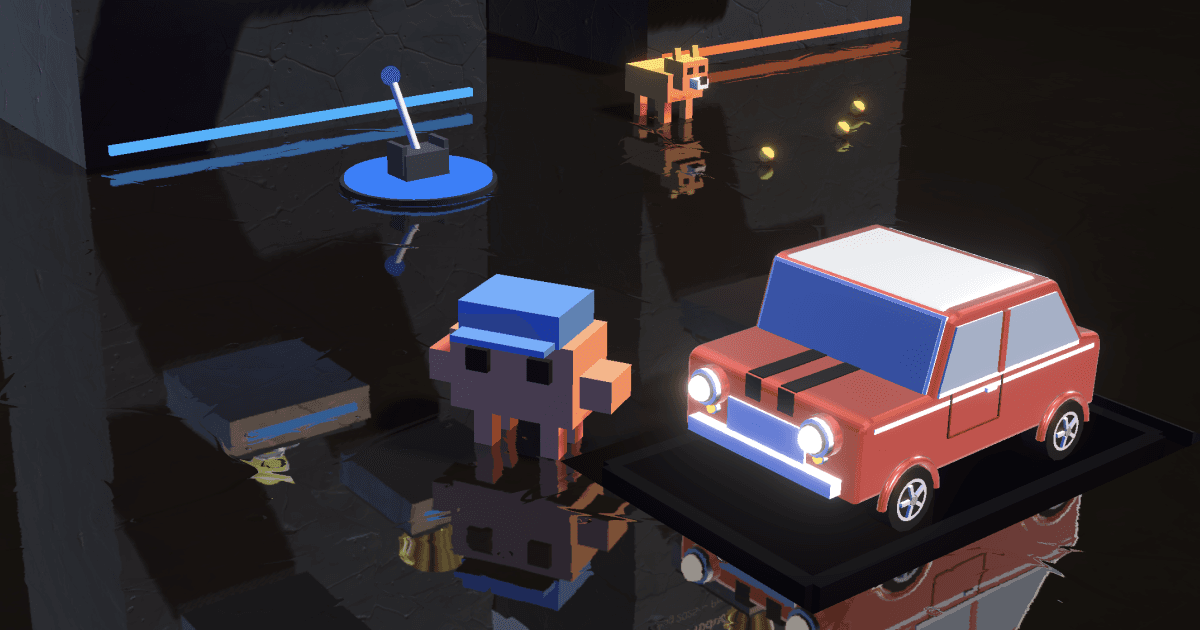
Code
Learn this properly
Three.js + GSAP
Why GSAP Changes Everything
GSAP drives the hover and scroll-tween effects common in a 3D image gallery.
Frequently asked questions
How do I build a 3D image gallery in Three.js?
Create a PlaneGeometry per image with the photo as its texture, arrange them in a grid or scattered layout in 3D space, and use raycasting to detect hover/click for interaction effects.
How do I make a Three.js gallery scroll-driven?
Map scroll position (native or from a smooth-scroll library) to camera position or rotation rather than moving the images themselves. The gallery stays fixed in 3D space and the camera moves through it as the user scrolls.
How do I avoid slow load times with many gallery images?
Load small placeholder textures for every image up front, then lazy-load the full-resolution texture for each image only as it comes near the camera or into view, swapping the material's map once it finishes loading.
Keep reading
Textures
Three.js loads textures with THREE.TextureLoader for standard image formats, and for production use should compress them…
Raycaster
THREE.Raycaster finds which 3D objects a ray intersects. Cast a ray from the camera through the mouse's normalized devic…
Animation
Three.js animates two different things in two different ways: imported skeletal/keyframe animations (from a glTF model) …
All Three.js Guides
Back to the guides hub.